
Robot Builder World
1.3M playsBuild your own blocky robot, then program it with Forward, Turn and Repeat blocks to reach the red flag — learn loops, sensors and switches with no typing!
Forward. Forward. Turn Right. Forward. Those four little words are a real computer program. In Robot Builder World for kids, you get to run it! First you build your very own blocky robot, part by part. Then you snap command blocks together and tap ▶️ Run. Your robot rolls across a tiny island made of grass cubes, stone and water. Its goal is the red flag 🚩. If your plan was right, it gets there. If it wasn't, you'll get a friendly "Bonk!" message and see exactly which block to fix.
That is coding without typing a single letter. Robot Builder World has been played more than 1.3 million times on KidWorld. Families give it 4.9 out of 5 stars in more than 4,000 ratings. There are 34 missions across four age levels. They go from a toddler's very first Forward block all the way to robots with sensors that make their own choices.
🤖 A Robot Game Where You Are the Engineer
Robot Builder World is a science and coding game in the Minecraft style. Everything is made of cubes: grassy ground, stone walls, leafy trees, blue water, even the robot itself.
Every mission has the same big goal: make the robot reach the red flag. Some missions add a little extra. You may need to grab shiny gems 💎 on the way. You may need to break a cracked rock, or flip a switch to open a gate.
The robot can't think for itself. It only does what your blocks tell it, one block at a time, in order. That list of blocks is called a program, or code. Real engineers who build real robots work the same way. They plan the steps, test them, find the mistake, and try again. That is exactly what you do on every island.
There are two jobs in this game, and you do both of them:
Build the robot. In the 🔧 Robot Workshop you pick its head, body color, two arms and wheels.
Program the robot. On each mission you tap blocks to build its code, then watch it go.
🔧 Inside the Robot Workshop
The first time you open a level, the game takes you straight to the Workshop. A message says: "Every engineer starts by building a robot!" Your robot stands on a little grass block. Spin it around with the two turn buttons to see every side. Tap the robot and it does a happy hop.
Along the top are five tabs, one for each part of the robot:
Head: a Box Head, a Round Head with a red visor, or a Sensor Head with an antenna.
Body: eight colors to choose from: Blue, Green, Red, Orange, Yellow, Purple, Pink and Silver.
Left Arm and Right Arm: Hands, a Claw, or a Drill.
Wheels: plain Wheels, bouncy Spring Legs, or strong Treads.
When you pick a new part, it drops onto the robot with a satisfying clunk.
Parts that give your robot new powers
Here is the clever part: some pieces are not just for looks. They are tools, and each tool lets your robot do something new. Under the robot, a row called "My robot can:" lights up to show its powers.
Claw ➜ the robot can Grab gems 💎.
Drill ➜ the robot can Drill through cracked rocks.
Spring Legs ➜ the robot can Jump over a square, like a water gap.
Treads ➜ the robot can Push heavy wooden crates.
Sensor Head ➜ the robot can Sense what is in front of it, which unlocks the If block.
Tool parts unlock one at a time as you finish missions. A locked part shows a 🔒, and if you tap it, the game tells you which mission unlocks it. On the mission map, a purple badge like "New: Claw" shows where each new part arrives.
Your robot has two arm slots but only one wheels slot. So your robot can carry a Claw and a Drill at the same time. But it can't have Spring Legs and Treads together. Choosing the right robot is part of the puzzle. Real engineers choose the right tool for each job, too.
🕹️ Playing Robot Builder World on KidWorld, Step by Step
Choose your level. There are four cards: Toddlers (6 missions), Preschool (8), Elementary (10) and Tweens (10). The game remembers your choice, and the "Change Level" button on the mission map lets you switch any time.
Build your robot. Pick parts in the Workshop, then tap "Start Mission 1".
Read the mission. At the top you'll see the mission's number and name. Below them is a short goal, like "Make the robot reach the red flag 🚩", and sometimes a tip. When a mission brings a new block or a new part, a card pops up to explain it first.
Look at the island. Find your robot and the white arrow on the ground in front of it. That arrow always shows which way the robot is facing.
Tap blocks to add them. The Blocks panel holds the commands this mission lets you use. Each tap adds that block to "My Code". A thin green bar shows where the next block will go.
Fix and tidy your code. Tap a block to select it, then tap its ✕ to delete it. Drag a block to move it somewhere else (on a phone or tablet, press and hold it for a moment first). The ↺ Undo button takes back your last change, and the 🗑 button clears all your code at once. Pressed it by mistake? Undo brings everything back.
Tap ▶️ Run. The robot follows your blocks one by one, and the block it is doing right now glows yellow. Tap Pause to stop it and Go to carry on.
Use Step to go slowly. Step makes the robot do just one move, then wait for you. It's the best way to find a mistake.
Tap Reset to send the robot back to the start.
Change the speed. The 🐢 turtle button switches to 🐇 rabbit speed, which is great for long programs.
Ask for a hint. The 💡 button looks at your code and helps. It might make the next block you need glow. It might point to a red block that makes the robot crash. Or it might say your robot needs a new part from the Workshop.
Collect your stars. When the robot reaches the flag, a card shows your stars and points. You can tap "Next Mission", "Try Again" or "Missions".
The page has buttons around the game, too. You can make it fullscreen for a bigger island, reload it, or turn the music on and off. Your stars, your robot and even the code you wrote for each mission are saved in your browser. So you can close the game and come back later right where you left off.
How the three stars work
Every mission can earn up to three stars ⭐⭐⭐. Each star is worth 10 points, so a mission gives up to 30 points.
⭐ Reach the flag. If the mission has gems, you must grab every one before you arrive.
⭐ Collect every battery 🔋. The green batteries are picked up when the robot rolls over them.
⭐ Smart code. Use no more blocks than the mission's goal, like "Smart code: ≤ 5 blocks". A Repeat or If block counts as one block, plus the blocks inside it.
The three goal chips above the island turn green as you meet them, so you always know how you're doing. Finishing a mission also unlocks the next one on the map.
🧠 How to Code Like a Robot Champion
This is where the real fun starts. Here are the tricks that turn "Bonk!" into "Perfect Mission!", from the very first tips to the clever ones.
Tip 1: Be the robot
Turn Left and Turn Right mean the robot's left and right, not yours. When the robot is facing toward you, its right side is on your left! Before you add a turn, look at the white arrow on the ground and imagine you are standing inside the robot. Some kids even turn their own body in their chair. It really works.
Tip 2: Count the squares out loud
Put your finger on the robot and count each square to the next turn: "one, two". That tells you exactly how many Forward blocks you need. A turn doesn't move the robot at all. It only spins it around in the same square.
Tip 3: Run early, run often
You don't have to write the whole program before testing it. Add a few blocks, tap Run, and see where the robot ends up. Then add the next part. Programmers call this testing, and they do it all the time.
Tip 4: Read the "Bonk!"
When something goes wrong, the game tells you what happened, and the guilty block turns red:
"Bonk! A stone wall is in the way." You went forward one time too many, or turned the wrong way.
"Splash! Robots can't swim." The robot rolled into water. Go around it, jump it, or build a bridge.
"Whoa! The robot rolled off the edge of the island." Check your turns.
"The robot stopped before the flag. Add more blocks!" Your code was right so far. It just isn't finished.
"The robot got dizzy — too many steps!" A loop is going round and round and never gets to the flag.
Fixing the red block, not the whole program, is the fastest way to win. That skill is called debugging, because a mistake in code is called a "bug".
Tip 5: Grab and Drill are safe to repeat
Grab only picks up a gem if the robot is standing right on it. Drill only breaks a cracked rock right in front of the robot. Anywhere else they do nothing at all. The robot just shows a little "?". That makes them safe to put inside a loop, even if not every square has a gem.
🔁 Five Missions, Solved Together
Let's try some real missions from the game, one by one.
Example 1: Warm-Up (Elementary, mission 1)
The robot starts in one corner of a small island. The flag is just two rows below it, but two trees block the way straight down. Follow the path with your finger:
Forward, Forward. The robot rolls two squares along the top.
Turn Right. Now it faces down the island.
Forward, Forward. It picks up a battery 🔋 on the way.
Turn Right again. Now it faces back toward the flag.
Forward, Forward. A second battery, and then the flag!
That's 8 blocks, and the smart-code goal is 8, so this plan earns all three stars. Notice it's the same shape as a "U": straight, turn, straight, turn, straight.
Example 2: Long Hallway and your first loop
In Long Hallway, the flag is 8 squares straight ahead, beside a long stone wall. You could tap Forward 8 times. But the smart-code goal is just 2 blocks! The answer is a loop, a block that repeats other blocks.
Tap Repeat. The green bar jumps inside it, ready for its insides.
Tap Forward. It goes inside the Repeat.
Tap the + button on the Repeat until it says 8.
"Repeat 8 times: Forward" does the same job with 2 blocks instead of 8. Every Repeat can go from 2 to 10 times. Loops are one of the most important ideas in all of coding.
Example 3: Stairs Up and finding the pattern
This island is a staircase through the trees. The robot must go forward, turn left, go forward, then turn right. It does this again and again, all the way to the flag at the top. Written out in full, that's 15 blocks!
The trick is to spot the part that repeats: Forward, Turn Left, Forward, Turn Right. Put those four blocks inside a Repeat set to 4. Now the whole climb takes 5 blocks: the Repeat plus the 4 inside it. That's the exact smart-code goal. A good way to find a pattern is to say the moves out loud until you hear yourself repeating.
Example 4: Robot Champion and stopping at the flag
In this Preschool mission, the robot drives around a tree. There are two gems at the corners and the flag at the end. The winning code is short:
Repeat 3 times: Forward, Forward, Grab, Turn Right
But wait, the third time around there's no gem to grab! That's fine for two reasons. First, the robot stops the moment it reaches the flag with every gem, even in the middle of a loop. So the last Grab and Turn Right never run. Second, a Grab with no gem does no harm anyway (Tip 5). That's 5 blocks for three stars.
Example 5: Robot Sensors and a robot that decides
This Tweens mission is a spiral path floating in the sky. The robot has to follow it round and round to the flag in the middle. It turns right at every corner, but the straight parts are all different lengths, so a plain Repeat doesn't fit.
This is the job for the Sensor Head and the If block. The code is:
Repeat until 🚩: If path is clear ➜ Forward, else ➜ Turn Right
Each time around, the robot looks at the square in front of it. If there is ground there, it moves forward. If there's only empty sky, it turns right instead. "Repeat until 🚩" keeps going until the robot reaches the flag, so you never have to count. That's just 4 blocks. Step through it and watch the If block say yes or no. The square ahead glows green or red at the same time.
⚙️ Switches, Crates and Other Puzzle Pieces
As the missions go on, the islands get more exciting. Here's what you'll meet and how to handle it.
Switches, gates and bridges
A switch is a small gray plate with a red button. When the robot rolls onto it, the button turns green, and every gate on the island opens. On some islands, a wooden bridge slides out across the river too.
In Switch It On, the gate stands right before the flag, and the switch sits off to one side. So the robot has to take a little detour first. Be careful: rolling onto the switch a second time flips it back off and closes the gate again! Plan a path that crosses the switch only once.
Crates and treads
Wooden crates are too heavy for wheels. If you try, you'll see "Too heavy! Wheels can't push crates — Treads can." With Treads, driving Forward into a crate pushes it one square ahead. If you push a crate into water, it sinks and becomes a bridge the robot can drive across!
In Push It!, the robot drives along a thin strip of land. It shoves the first crate into the sea, rolls over it, and turns right at the corner. Then it pushes a second crate into the water to reach the flag. One neat answer is Repeat 5: Forward, Turn Right, Repeat 3: Forward, just 5 blocks. A crate can't be pushed if a wall or another crate is behind it, so look where it will land.
Jumping with Spring Legs
Jump sends the robot over the square in front of it and lands two squares ahead. It's perfect for one-square water gaps, like in Spring Jump. But springs can't hop over tall things like walls, trees, gates, rocks or crates. The landing square must be clear ground, too. Also, a battery on the square you jump over doesn't get picked up, because the robot never touched it.
A loop inside a loop
You can put a Repeat inside another Repeat. In Loop in a Loop, the robot drives around a square path with gems at the corners. Each side is the same: go forward several squares, grab the gem, turn right. So the inner Repeat drives one side, and the outer Repeat does all four sides. Programmers call this a nested loop.
The big finale: one loop to solve everything
The last Tweens mission is Master Engineer. It has everything in one long row: gems, cracked rocks, a water gap, a switch and a gate. With a Sensor Head, a Claw, a Drill and Spring Legs all fitted, one smart loop can handle all of it:
Repeat until 🚩:
If on a gem ➜ Grab
If rock ahead ➜ Drill
If water ahead ➜ Jump, else ➜ Forward
That's 8 blocks, and the robot works out every square by itself. The switch sits right before the gate, so rolling over it opens the way. If you can build this one, you are a true Master Engineer.
🎒 Robot Builder World for Kids, From First Steps to Big Brains
Each level on the "Choose Your Level" screen has its own set of missions, so the game grows with your child.
🧸 Little ones (Toddlers, ages 2–4)
Robot Builder World for toddlers starts with just one block: Forward. In "Hello, Robot!" the flag is three squares away. The tip says "Tap Forward three times, then tap Run!" Turn Left and Turn Right arrive in mission 3. By the last of the 6 missions, "Around the Pond", the robot is steering around water. The robot moves a little slower at this level so small eyes can follow. A grown-up nearby can help with the counting.
🖍️ Early learners (Preschool, ages 4–6)
Robot Builder World for preschoolers has 8 missions. It adds a choice between "Two Roads", then the Claw and the Grab block in "Shiny Gem". The first Repeat loop comes in "Loop the Loop". It ends with "Robot Champion", which shows how a robot stops at the flag even halfway through a loop.
🔬 Growing coders (Elementary, ages 6–10)
Robot Builder World for elementary kids has 10 missions. It brings in three new tools: the Claw, Spring Legs and the Drill. It also adds switches, gates, a bridge that slides out over a river, and the first loop inside a loop. The "Grand Mission" at the end needs a Claw, a Drill and Spring Legs all on one robot. A "Robot check" line under the island shows whether your robot has the parts each mission needs.
🚀 Future engineers (Tweens, ages 10–12)
Robot Builder World for tweens is the big challenge. Its 10 missions start with fast loop practice, then add "Repeat until 🚩", the Sensor Head and the If block. Treads and crates arrive in "Push It!". In "Twisty Path", the robot follows a winding path that turns both left and right, with an If inside another If. The Robot check line is gone at this level. Tweens must look at the island and decide which parts their robot needs. The smart-code goals are tight, so they really have to think like programmers.
💡 Why Little Engineers Love It (and Grown-Ups Do Too)
It teaches real coding ideas. Robot Builder World for kids turns big ideas into colorful blocks. Sequences, loops, nested loops, "repeat until" and if/else are the same ideas that grown-up programmers use every day. Here you just tap them, so no typing or spelling is needed.
Mistakes are part of the fun. When the robot bonks into a tree, nobody loses. The game points at the red block, and your child fixes it and tries again. That "test, fix, try again" habit is how real engineers work. It also helps kids stay calm when something doesn't work the first time.
It builds planning and patience. Kids learn to think a few steps ahead before they tap Run. Counting squares, finding patterns and imagining the robot's left and right are all great practice for math and for reading maps.
Building the robot teaches problem solving. Kids pick a Claw for gems, a Drill for rocks, or Treads for crates. They learn that the right tool makes a hard job easy. And with only one wheels slot, kids learn that sometimes you have to choose.
The smart-code star rewards clever thinking. Once the robot reaches the flag, kids naturally want to try again with fewer blocks. That makes them hunt for patterns and loops, a very real part of computer science.
For parents and teachers
Robot Builder World is a gentle game: no scary moments, no timers, and nothing to buy. The worst thing that can happen is a cheerful "Bonk!" or a splash. Progress and code are saved in your own browser, so a child can come back to the same mission later. It's lovely to play side by side. Ask your child to read their code out loud and guess where the robot will stop. Then tap Run together and see if they were right.
Ready to build your first robot? Pick a head, choose a color, add a few blocks and watch it roll toward that red flag. Robot Builder World for kids is waiting for you right here on KidWorld. Happy coding, little engineer! 🤖🚩
🖼️ See the Game in Action
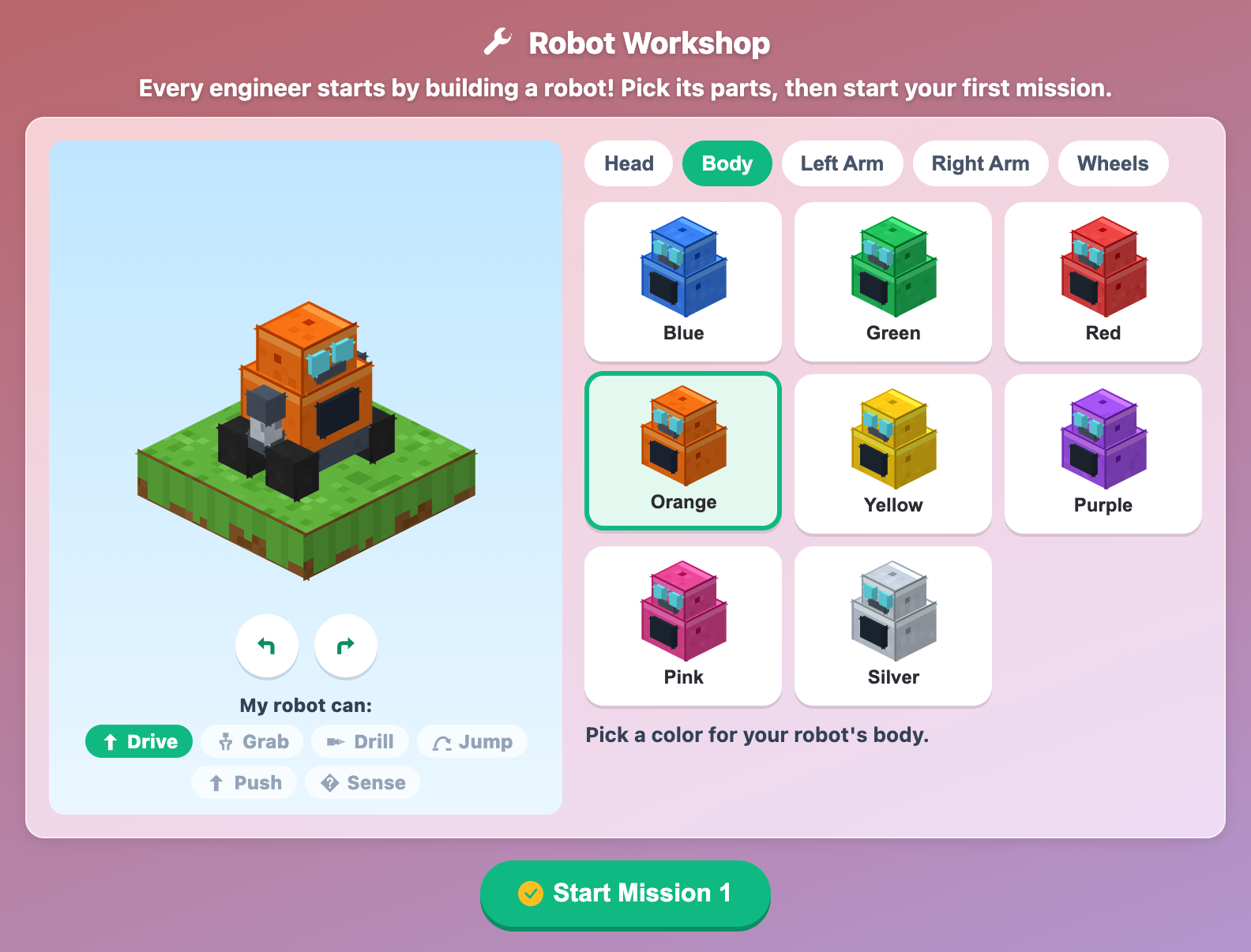
The Robot Workshop in Robot Builder World for kids, with an orange blocky robot on a grass block and eight body colors to choose from
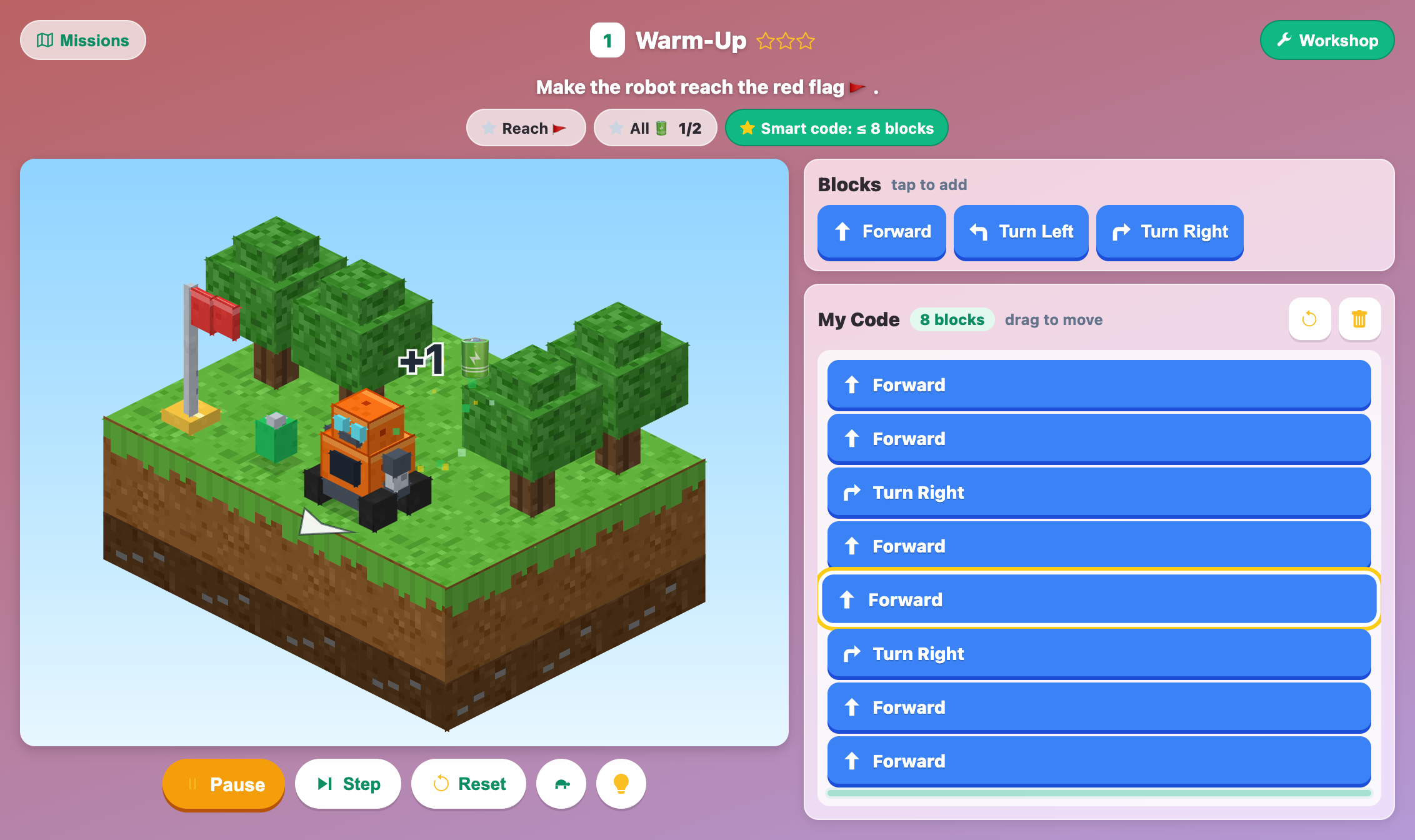
A robot rolling across a small grass island toward the red flag while the Forward block it is running glows yellow in the code list
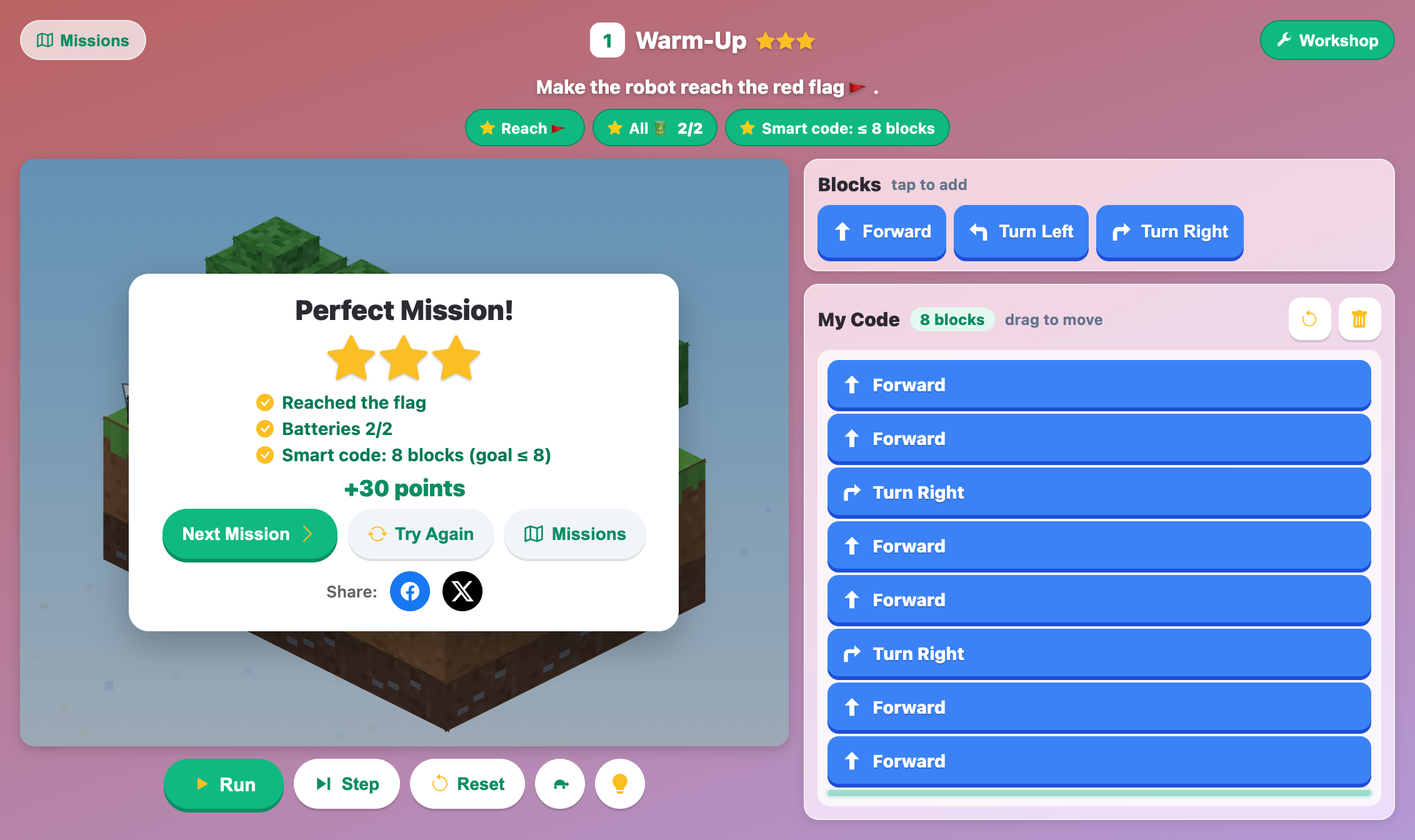
The Perfect Mission card with three gold stars and plus 30 points after the Warm-Up mission in Robot Builder World
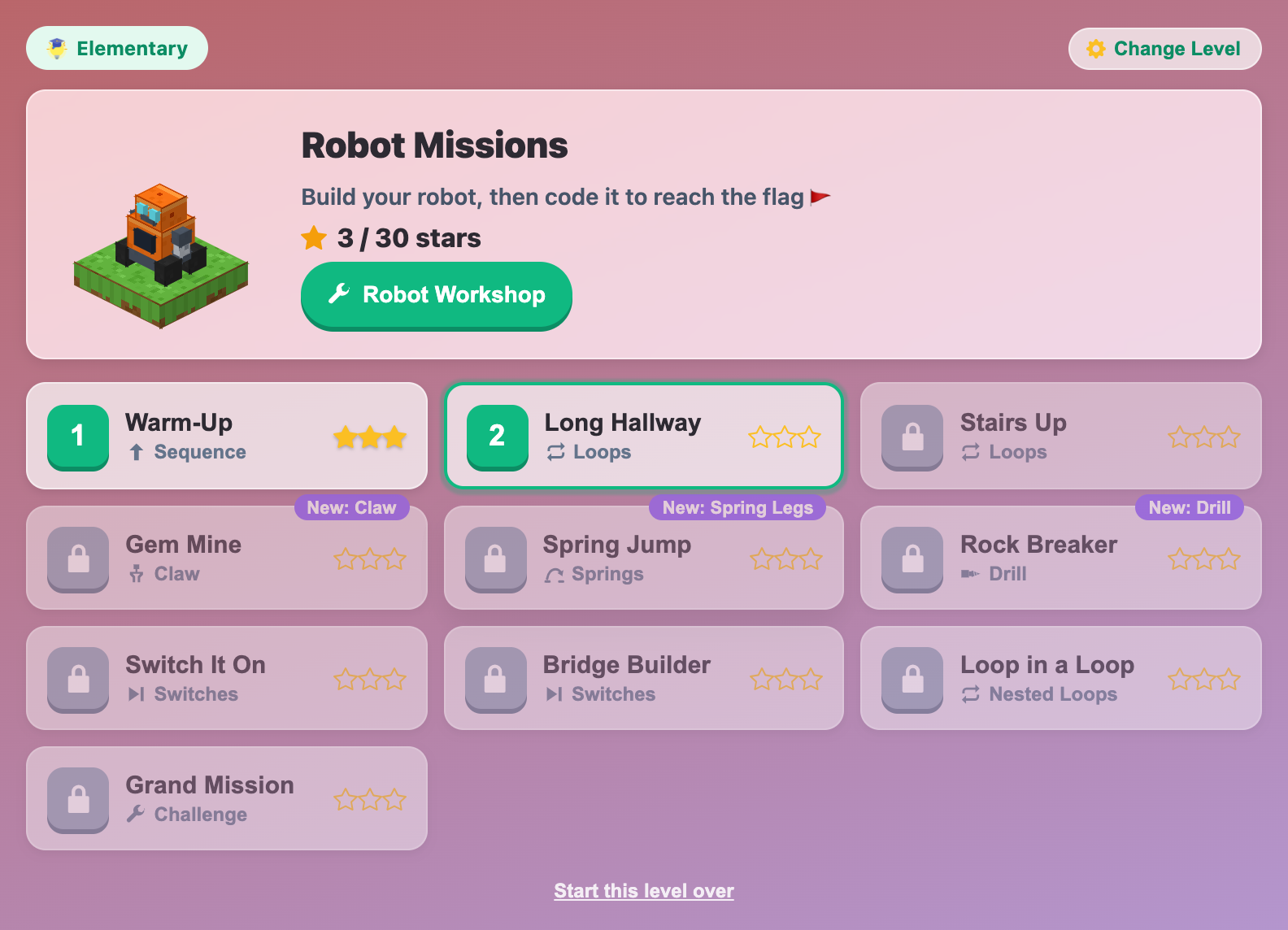
The Robot Missions map for elementary kids, with Warm-Up done, Long Hallway next, and new Claw, Spring Legs and Drill badges
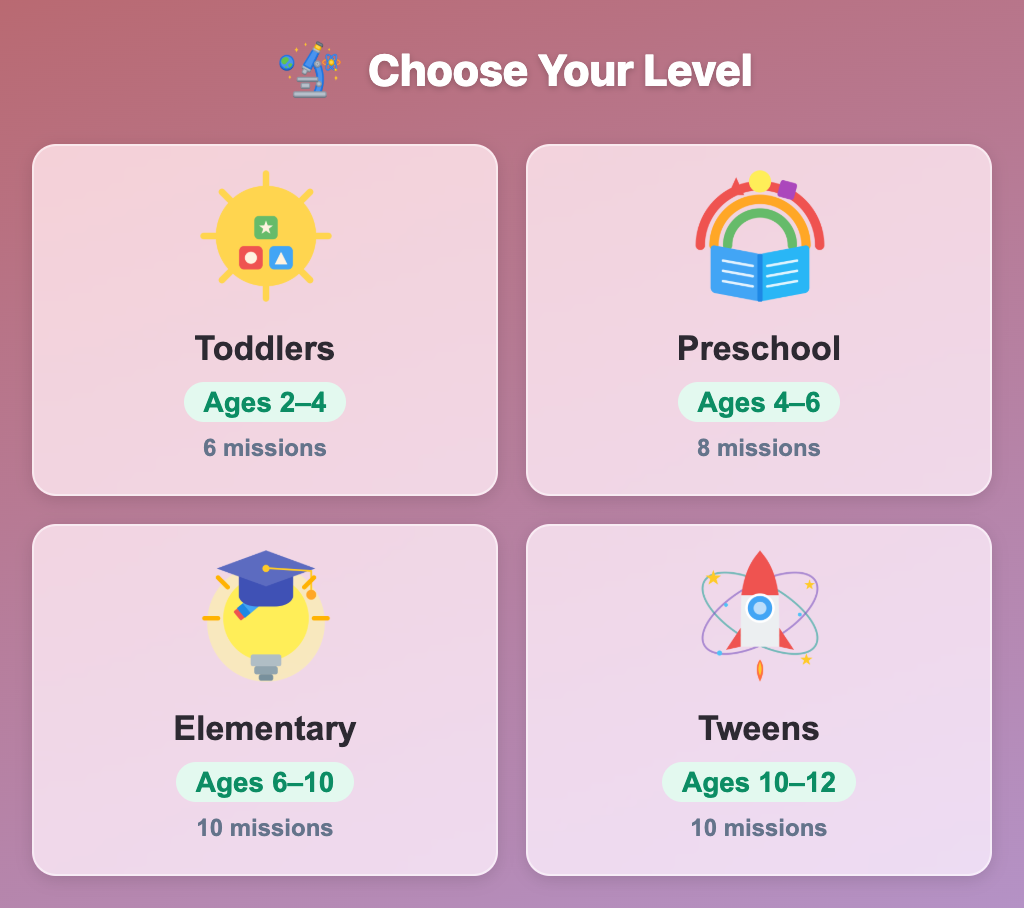
The Choose Your Level screen in Robot Builder World, with Toddlers, Preschool, Elementary and Tweens cards and their mission counts
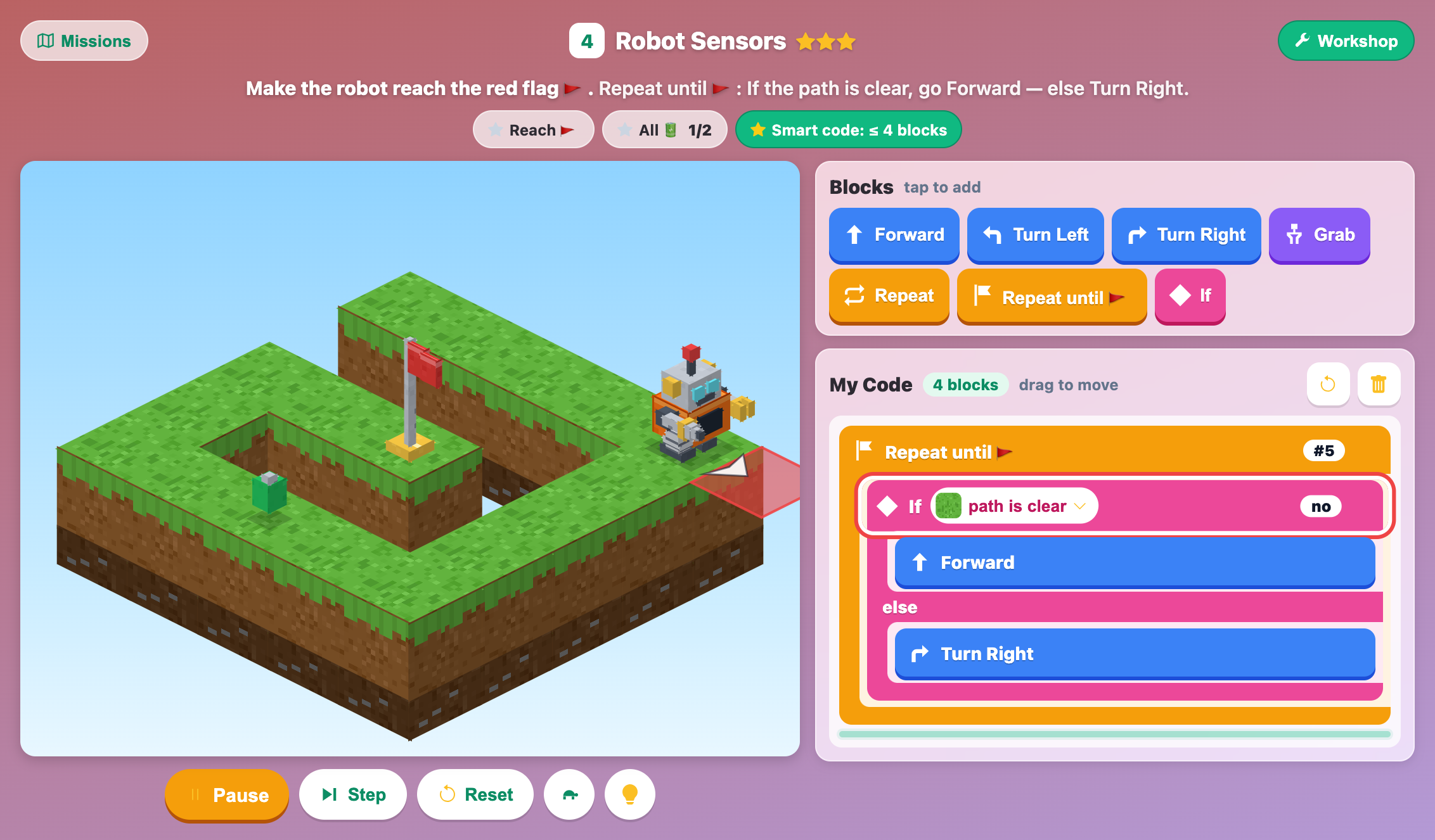
Robot Builder World for tweens paused in Step mode, with an If path is clear block answering no and a red square ahead of the robot
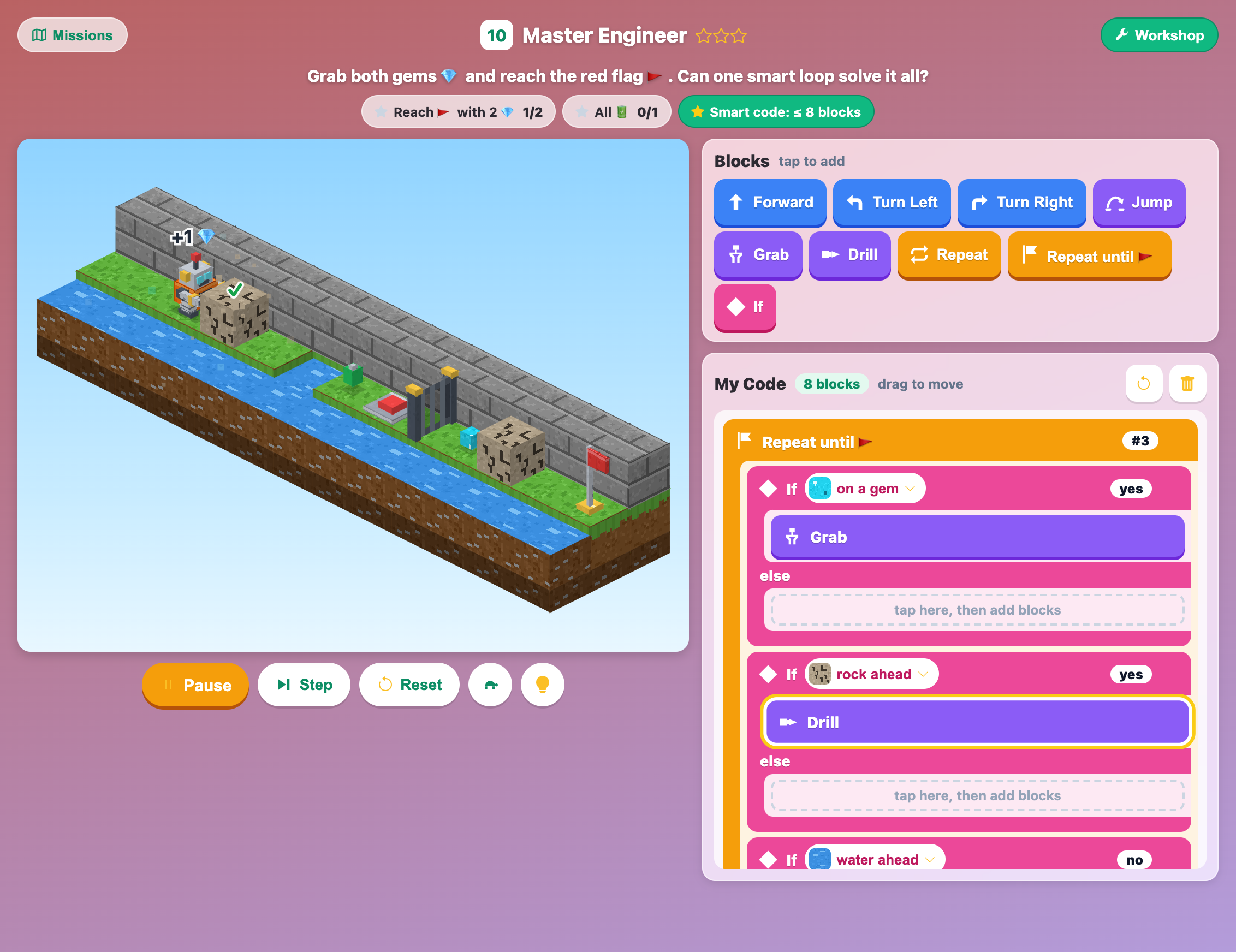
The Master Engineer mission, where one Repeat until flag loop with three If blocks grabs a gem and drills a cracked rock
More Science Games
 59.3K plays
5.0
59.3K plays
5.0
Recycling Sort
Sort everyday items into the Recycle, Compost, or Trash bin before time runs out!
 85.7K plays
4.9
85.7K plays
4.9
Grow a Plant
Plant seeds in sunny and shady garden beds, then water, feed and protect them day by day. Watch the roots grow underground and harvest sunflowers, tomatoes, carrots and more!
 438.5K plays
5.0
438.5K plays
5.0
Magnet Experiment
Drag a magnet around the table and discover which objects it can pick up!
 876.5K plays
4.9
876.5K plays
4.9
Science Quiz
Pick your age level and answer fun multiple-choice science questions!
Most Played Games
 1.8M plays
5.0
1.8M plays
5.0
Color & Draw
A free-drawing canvas with colors and brush sizes to unleash your creativity.
59.3K plays
5.0
Recycling Sort
Sort everyday items into the Recycle, Compost, or Trash bin before time runs out!
 365.5K plays
4.9
365.5K plays
4.9
Tic-Tac-Toe
Play a game of Tic-Tac-Toe against the computer and see if you can outsmart it.
 1.1M plays
4.9
1.1M plays
4.9
Chess
Play the classic game of chess against the computer or a friend, with FIDE time controls, hints, and undo.
Comments (76)